
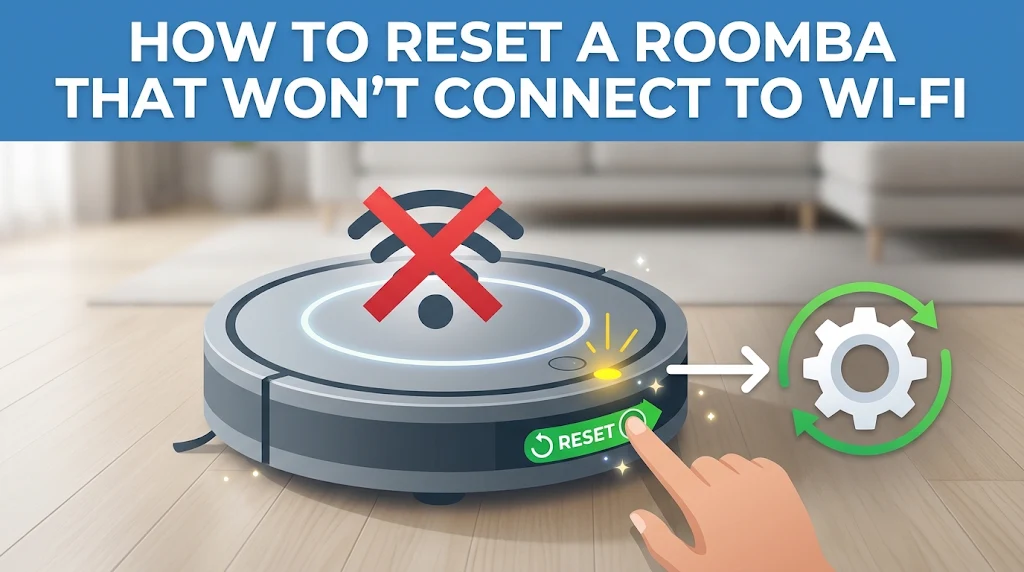
There is a unique kind of modern frustration that comes with smart home technology refusing to cooperate. You tap your phone screen, ready to schedule a clean before guests arrive, only to be met with a stark error message: “Roomba is not connected to the Wi-Fi.”
Your robotic vacuum, designed to make life easier, now sits motionless on its charging dock, completely ignoring commands from the iRobot HOME app. Whether it is a blinking red light of doom, an endless “Connecting…” loading screen, or a sudden disconnection after a router upgrade, connection glitches can bring your automated cleaning routine to a screeching halt.
Fortunately, fixing a Roomba Wi-Fi connection issue rarely requires professional help. In most cases, a targeted system reset, a network configuration tweak, or a simple app refresh will restore harmony to your smart home ecosystem. In this comprehensive guide, we will walk you through everything you need to know about why your Roomba loses connection, how to perform a proper reset tailored to your specific model, and how to bulletproof your network against future dropouts.
1. Understanding Why Your Roomba Drops Wi-Fi
Before diving straight into the reset button, it pays to understand why your Roomba is struggling to maintain a link with your network. Robot vacuums are unique network clients. Unlike smartphones or laptops that sit close to eye-level or move between designated workspaces, Roombas operate near the floor, navigate tight corners, and move under heavy furniture where wireless signals naturally degrade.
The 2.4 GHz vs. 5 GHz Dilemma
One of the most common culprits behind connection failures is frequency incompatibility. Nearly all legacy and modern Roomba models—including the 600, 900, e, i, and j series—operate exclusively on 2.4 GHz Wi-Fi networks.
Modern dual-band and tri-band routers often combine 2.4 GHz and 5 GHz bands under a single SSID (network name). When your smartphone tries to provision the Roomba, the phone is often sitting on a 5 GHz band, which can confuse the setup handoff.
Pro Tip: During the initial setup or reset process, temporarily disable the 5 GHz band on your router or use a guest network restricted exclusively to 2.4 GHz. This forces your phone and your Roomba to communicate on the exact same frequency without interference.
Router Security and Firewall Barriers
Roombas rely on specific port communications (such as MQTT and HTTPS) to communicate with iRobot’s cloud servers. If your router has high-level security settings, AP isolation enabled, or aggressive firewall rules, it may block the Roomba from establishing an outbound connection, resulting in a failed setup loop.
2. Step-by-Step Guide: How to Reset Your Roomba
Depending on which Roomba model you own, the physical hardware reset process varies. Resetting clears the robot’s temporary cache, reboots its internal firmware processor, and clears out corrupted network credentials.
Locate your specific model below and follow the precise sequence.
Method A: Resetting i, j, and e Series Roombas (i7, i3, j7, e5, etc.)
These newer models feature a central CLEAN button surrounded by a light ring.
Wake up the robot: Ensure your Roomba is off the home base or that the base is powered on. Press the CLEAN button once to wake the robot up.
Press and hold the CLEAN button: Press and hold down the CLEAN button continuously for about 10 seconds.
Wait for the light ring: Keep holding until the light ring around the button illuminates in a swirling white light pattern.
Release and wait: Release the button. The Roomba will play a reboot tone. Note that this factory reset can take up to a minute to complete. Once the light stops spinning and turns solid or chimes, the robot is ready for re-pairing.
Method B: Resetting 900 and 600 Series Roombas (960, 980, 690, etc.)
These models feature physical buttons clustered near the front handle.
Turn on the robot: Press the CLEAN button to turn on the Roomba.
Press the combination buttons: Simultaneously press and hold the HOME button, the SPOT CLEAN button, and the CLEAN button down at the same time.
Listen for the tone: Hold all three buttons down for roughly 10 seconds until you hear a distinct acoustic tone or musical chime play.
Release: Release the buttons. The Wi-Fi indicator light will flash, confirming that the network settings and memory have been wiped clean.
3. Troubleshooting Network and App-Level Roadblocks
If resetting the physical hardware doesn’t resolve the Wi-Fi dropouts, the issue likely stems from your smartphone app, permissions, or router environment. Follow this systematic troubleshooting checklist.
Step 1: Clear App Cache and Reinstall iRobot HOME
Sometimes the bug isn’t in the vacuum—it’s in the app interface holding onto stale authentication tokens.
Delete the iRobot HOME app completely from your mobile device.
Restart your phone to clear temporary system memory.
Re-download the app from the Apple App Store or Google Play Store and log back into your iRobot account.
Step 2: Verify Phone Permissions
During setup, the iRobot app requires access to your local network and Bluetooth to discover nearby devices.
Go to your phone’s Settings > Privacy & Security > Local Network (iOS) or Permissions (Android) and ensure the iRobot app has explicit access enabled.
Turn on Bluetooth on your phone, as modern setup sequences use Bluetooth Low Energy (BLE) to pass Wi-Fi credentials to the Roomba.
Step 3: Check Wi-Fi Signal Strength in Problem Areas
If your Roomba frequently disconnects after a successful setup, it might be suffering from dead zones.
Walk to the Roomba’s charging dock location while holding your smartphone.
Check your Wi-Fi signal indicator. If you have fewer than two bars, your router signal is struggling to penetrate walls or appliances. Consider relocating your router closer to the charging dock or installing a Wi-Fi extender.
4. Common Pitfalls and Mistakes to Avoid
When troubleshooting smart home devices, it is easy to fall into loops that waste time. Avoid these frequent errors:
Skipping the Router Reboot: Many users reset the Roomba five times in a row without touching their Wi-Fi router. Routers suffer from memory leaks and IP address assignment hangs. Always power-cycle your router by unplugging it for 30 seconds alongside resetting the Roomba.
Using Special Characters in Wi-Fi Credentials: Some older Roomba firmware versions struggle to parse complex characters, symbols, or spaces in Wi-Fi network names (SSIDs) and passwords. Keep your network name alphanumeric during setup if you experience recurring failures.
Attempting Setup with a Low Battery: If your Roomba’s battery level is critically low (< 15%), it may refuse to run the high-power Wi-Fi provisioning radio. Always ensure the robot is sitting properly on a powered charging base with a steady amber or green glow before starting setup.
5. Frequently Asked Questions (FAQ)
Will resetting my Roomba delete my cleaning history and maps?
Yes. Performing a factory or network reset clears all saved memory, custom Smart Maps, and cleaning schedules stored locally on the robot. Once you reconnect it to Wi-Fi and the cloud, your app account will sync, but you may need to re-run an initial mapping run or rebuild your imprint smart maps.
Why does my Roomba say “Wi-Fi setup failed” right at the end?
This typically occurs when your phone’s cellular data interferes with the local network handoff. Turn off your cellular data temporarily during the setup wizard so your phone is forced to remain strictly on the 2.4 GHz Wi-Fi network.
Can a VPN on my phone block Roomba setup?
Absolutely. Virtual Private Networks (VPNs) reroute your phone’s local IP traffic through external servers, preventing your phone from discovering devices on your local subnet. Always disable your VPN before attempting to pair or reset smart home appliances.
Conclusion
Dealing with a stubborn Roomba that refuses to connect to Wi-Fi can test your patience, but methodical troubleshooting always wins out. By understanding the constraints of 2.4 GHz networks, executing the correct physical button sequence for your specific model, and clearing out app-level glitches, you can restore full automation to your cleaning routine.
Take a structured approach: reboot your router, reset the robot, check your app permissions, and you will be back to hands-free vacuuming in no time.
Call to Action: Ready to optimize your entire smart home ecosystem? Drop a comment below with your router model or Roomba series if you are still experiencing dropouts, and subscribe to our newsletter for more expert smart home guides and tech troubleshooting tips!
